EMSHIBeta

Idioma

Idioma

Cómo usar EMSHI

Practical guides for the main EMSHI journeys — getting a vehicle moved, getting a personal Driver sticker, running your organization, responding to an alert, printing stickers, privacy, and what happens if nobody replies.

Guías

  1. Si estás bloqueado

    Sin app ni cuenta. Usa la cámara del móvil en la pegatina: parkings llenos, plazas de visitas y eventos.

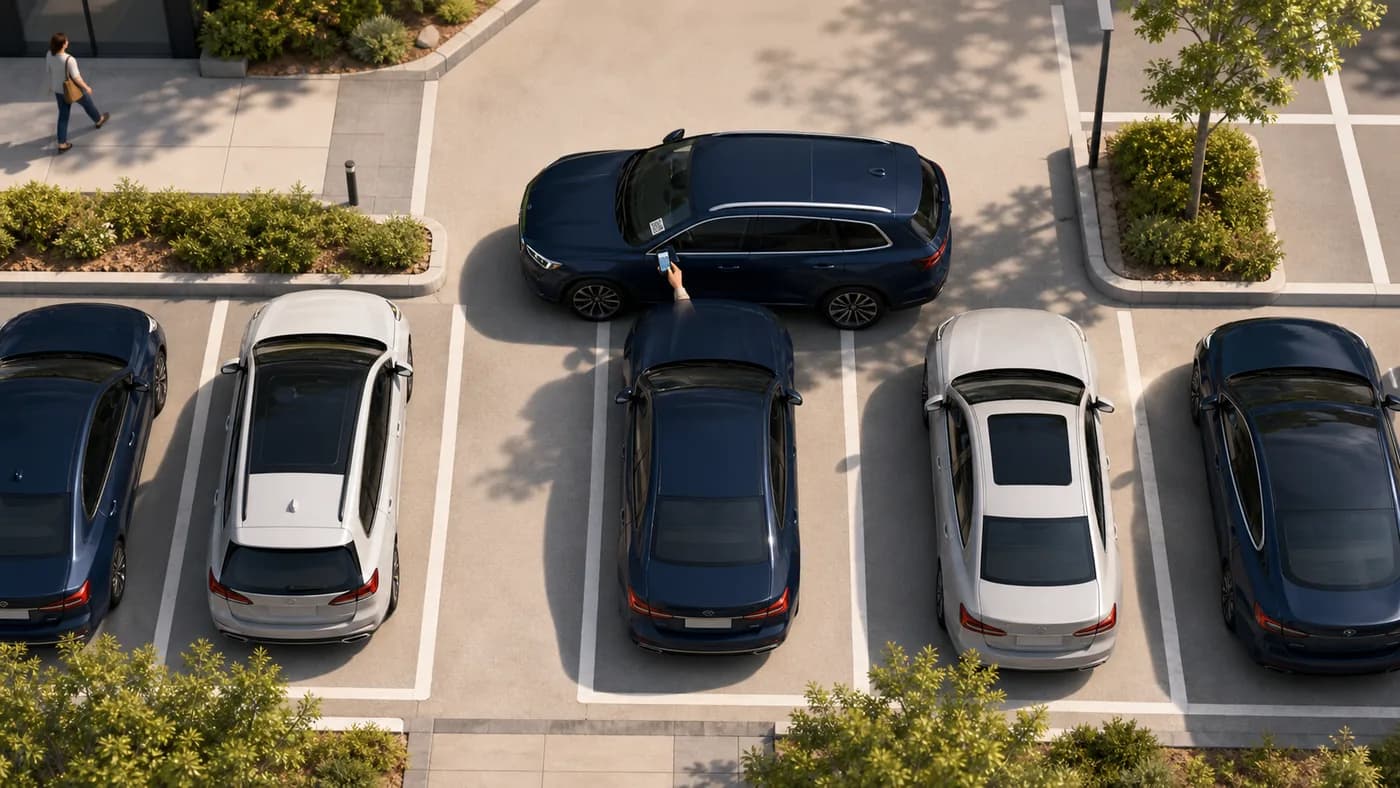
    1. Escanea el QR de la pegatina del parabrisas con la cámara o el navegador.
    2. Confirma que la matrícula en pantalla coincide con el vehículo delante de ti.
    3. Toca Notificar para avisar en privado al contacto responsable — no verán tu número.
    4. Stay on the request status page for updates (notified, on the way, moved). You can cancel the request from that page before the contact responds.
    5. Si no hay respuesta y el sitio lo ofrece, puedes ver Escalar a un contacto del lugar.
    Vista aérea de un coche bloqueado mientras alguien escanea el QR del vehículo que bloquea
    BloqueadoEscanea la pegatina del vehículo que te impide salir.

    Consejo: deja abierta la página de estado. No hace falta llamar ni enviar mensajes tú.

  2. If you want a personal Driver sticker

    A personal printable QR for your own car. No traditional account. When you block someone in, they can ask you to move — privately.

    1. Go to For Drivers and enter your mobile, registration, make, model, and colour.
    2. Confirm your mobile with the one-time code we text you, then get your QR (personal Driver stickers are free during launch).
    3. Print the sticker and place it inside your windscreen where scanners can see it.
    4. When someone scans it, you get an SMS with a secure link — reply On my way, I have moved it, or I can't move it.
    5. If you lose the sticker, recover and reprint from For Drivers → Recover using the same mobile number.

    Tip: Driver stickers send one automatic reminder and do not escalate to a site contact.

  3. Si diriges la organización

    Usa el panel para registrar personas y vehículos, asignar responsables e imprimir pegatinas de la flota.

    1. Inicia sesión, elige un plan si se pide y completa el perfil de la organización.
    2. Add contacts with a working mobile number in international format. Each contact must open the SMS agree link and tap I agree before they can receive movement alerts.
    3. Añade vehículos y asígnalos a un contacto o grupo; sin asignación no se imprimen.
    4. En Vehículos genera QR e imprime la hoja A4 con guías de corte.
    5. Coloca pegatinas dentro del parabrisas y usa Importar/Exportar para muchos registros.

    Tip: Watch Dashboard readiness and Needs attention so missing contacts, pending agreements, or QR gaps are fixed before drivers get stuck.

  4. Si recibes una solicitud de movimiento

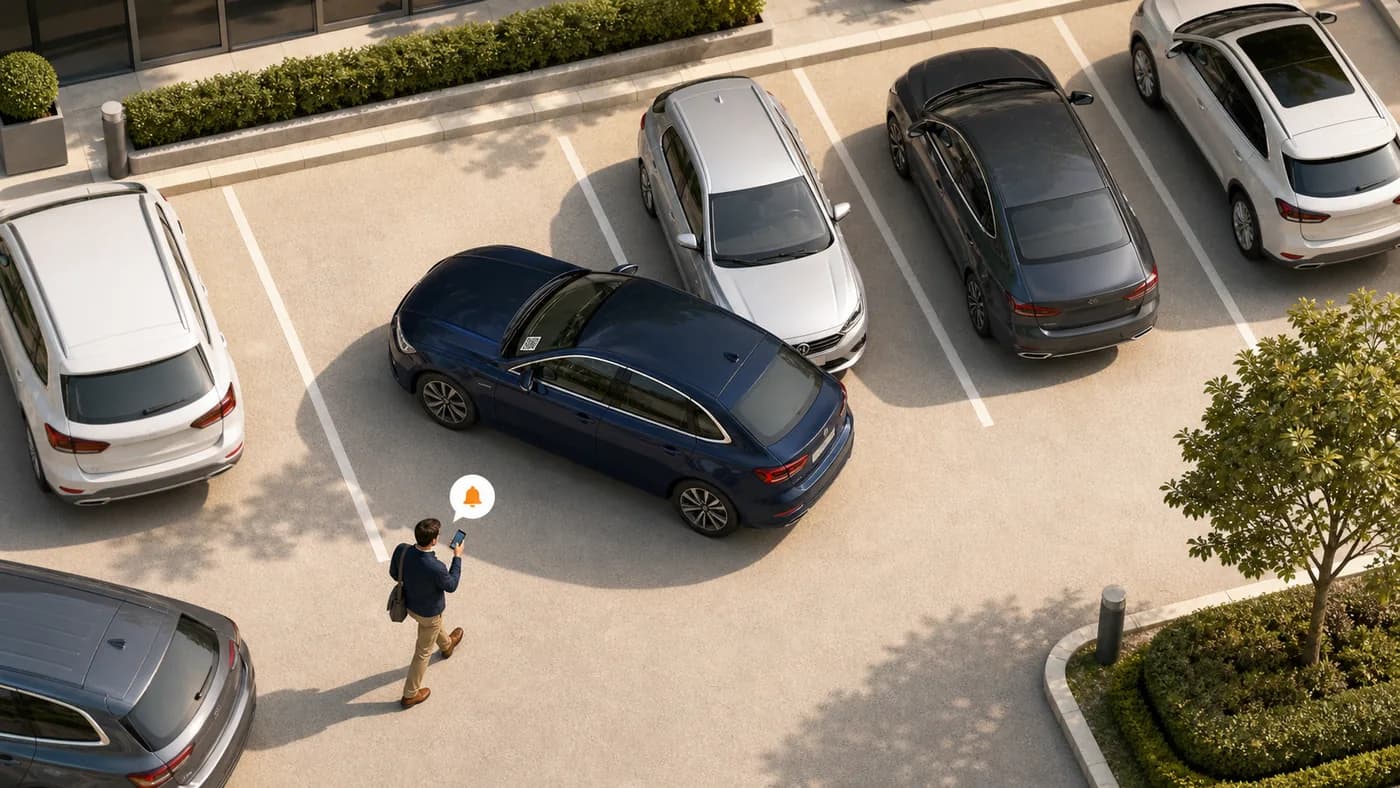
    Recibes un SMS cuando alguien necesita que se mueva el vehículo. Tu número no se muestra al solicitante.

    1. Abre el enlace seguro del SMS (sin app).
    2. Choose On my way, I have moved it, or I can't move it. If someone else in your group already claimed it, you may see Covered — no action needed.
    3. El solicitante ve el estado sin tu nombre ni número.
    4. Si llega un recordatorio, vuelve a abrir el mismo enlace para actualizar el estado.
    Vista aérea de un bloqueador que recibe un aviso junto a un coche que bloquea a otro
    BloqueadorAbre el aviso y mueve el vehículo cuando alguien te lo pida.

    Consejo: actúa pronto si puedes; pueden seguir recordatorios y escalado.

  5. Imprimir y colocar pegatinas

    Pegatinas pensadas para A4 con guías de corte y QR legible en el parabrisas.

    1. Print from Dashboard (organizations) or For Drivers (personal stickers) using a normal printer and A4 paper or sticker sheets.
    2. Corta por las líneas discontinuas.
    3. Coloca la pegatina dentro del parabrisas, visible al escanear; evita tintado fuerte y obstáculos.
    4. Si regeneras un QR, imprime y sustituye al momento; los códigos antiguos dejan de funcionar.

    Consejo: guarda unas pegatinas de repuesto tras vidrios o pérdidas.

  6. Cómo funciona la privacidad

    EMSHI evita que solicitantes y contactos intercambien números personales.

    1. El solicitante escanea y notifica sin cuenta ni compartir su número.
    2. EMSHI avisa a los contactos; el solicitante no ve nombres ni números.
    3. El estado queda en la página de la solicitud, sin llamarse entre ustedes.
    4. En un escalado, datos limitados pueden ir al contacto de escalado de la organización, no de forma pública.

    Consejo: lee la política de privacidad sobre retención y lo que ven los administradores.

  7. Si nadie responde

    Most requests resolve after the first SMS. When a site configures escalation, requesters get a further option. Personal Driver stickers do not escalate.

    1. Quédate en la página de estado tras notificar.
    2. Puede enviarse un recordatorio automático si no hay acuse tras una breve espera.
    3. Si la organización lo activó, Escalar avisa a un teléfono del sitio fuera del responsable habitual.
    4. El escalado no obliga a mover el coche de inmediato: pide ayuda al sitio si el habitual no responde.

    Consejo: las organizaciones activan el escalado en Ajustes con móvil y horario válidos.

Preguntas frecuentes

Respuestas rápidas para conductores y administradores.

¿Necesito una app para que muevan un vehículo?
No. Escanea el QR, confirma la matrícula y toca Notificar en el navegador.
¿Verán mi número o el del conductor?
No. EMSHI avisa al contacto responsable. Nombres y números siguen privados en el flujo normal.
¿Y si nadie responde?
Stay on the status page. You may get an Escalate option if your organization has set that up. Escalation alerts a site contact; it does not force the vehicle to move. Personal Driver stickers send one reminder and do not escalate.
¿Para quién es EMSHI?
Anyone who wants a private nudge when they block someone in (personal Driver stickers), and shared parking sites — offices, business parks, universities, residential estates, busy car parks, and event or venue parking — that want blocked-in drivers helped without swapping personal numbers.
¿Qué configura el administrador?
Add contacts and vehicles, assign who is responsible for each vehicle, wait for each contact to agree on the SMS link, generate and print QR stickers, then place them on windscreens. Import/export helps with larger fleets.
¿Pegatina QR perdida o dañada?
An administrator regenerates the code from Vehicles and prints a new sticker. The old code stops working so only the new sticker remains valid. Driver sticker owners can recover and reprint from Recupera tu código QR de EMSHI Driver using the mobile number used when you got the sticker.
¿Imprimir sin contacto?
No. Every printable organization vehicle needs a responsible contact or group first, so a scan can deliver a real SMS. Personal Driver stickers use your own mobile as the contact.
¿Cómo funciona la facturación?
Organization plans are flat USD rates by vehicle count (monthly or annual). See Pricing for current amounts and Terms for the detailed month-of-use billing rule. Personal Driver stickers are free during launch.
Como subo o bajo de plan?
Para subir: Panel → Facturacion → Mejorar plan (abre Precios; tu nivel actual e inferiores siguen bloqueados mientras estes suscrito). Para un plan inferior, cancela primero la suscripcion en Facturacion y luego compra el plan inferior en Precios. Cancelar detiene renovaciones; los importes ya facturados del periodo actual no se reembolsan.
Why must organization contacts tap I agree?
Before a contact receives movement-request SMS, they must open the one-time agree link we text them and tap I agree. That confirms they are happy to get private move alerts. Changing their phone number clears agreement and sends a new link.
Cómo usar EMSHI · EMSHI