- Do I need an app to get a vehicle moved?
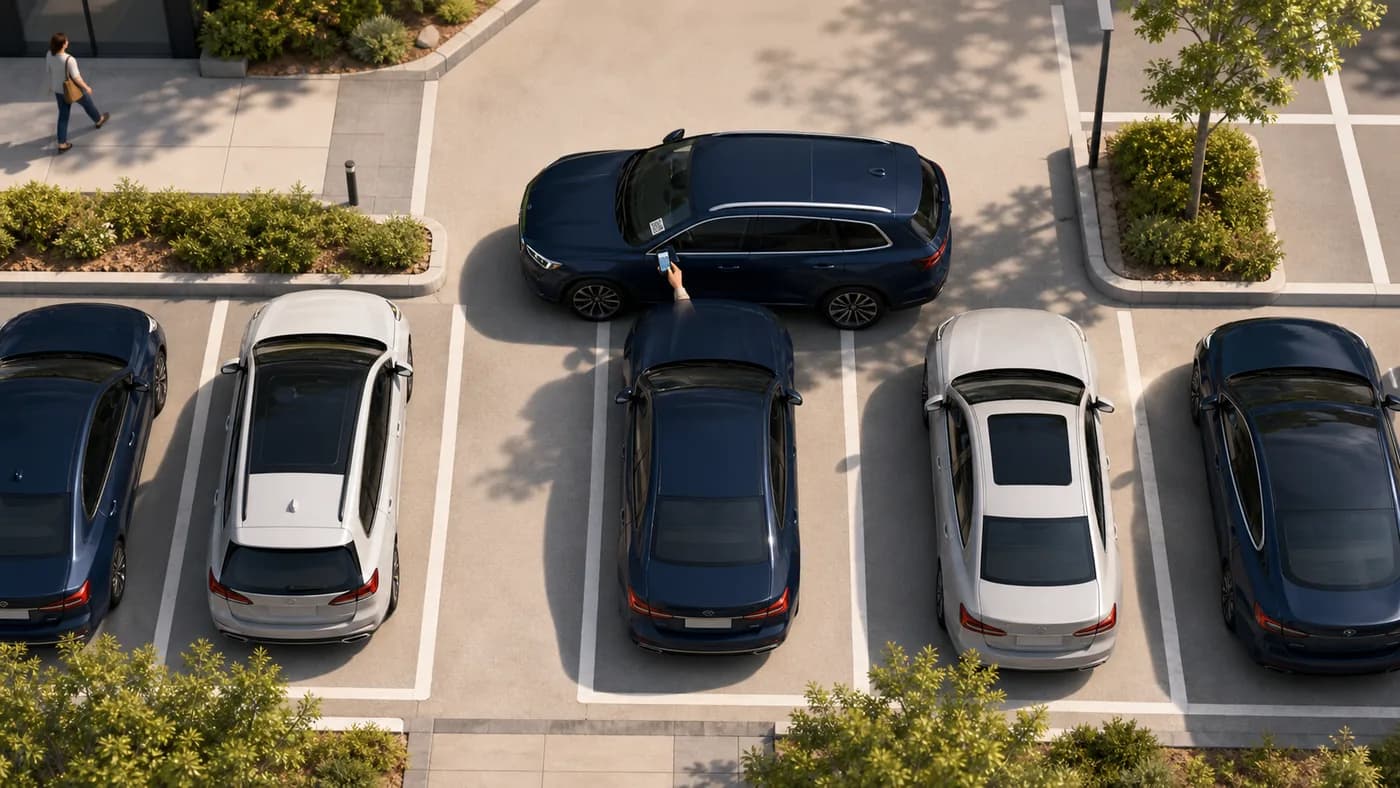
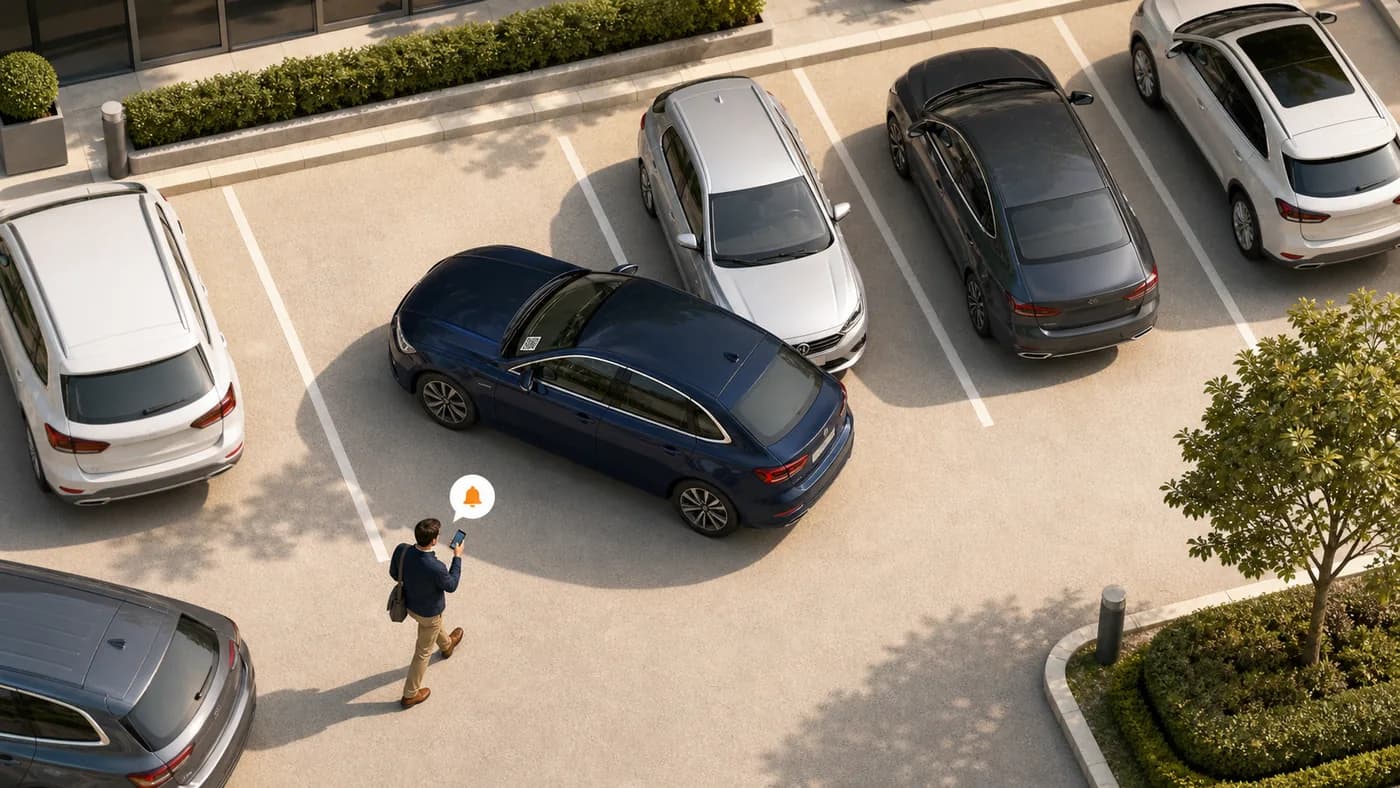
- No. At a workplace, scan the car-park wall sign and enter the blocker’s registration, then tap Notify in your phone browser. A QR card on the other car is not required.
- Will anyone see my number or the driver’s?
- No. EMSHI notifies the responsible contact for you. Names and phone numbers stay private on both sides in the normal flow.
- What if nobody replies?
- Stay on the status page. You may get an Escalate option if your organization has set that up. Escalation alerts a site contact; it does not force the vehicle to move. Personal Driver sends one reminder and does not escalate.
- Who is EMSHI for?
- Primarily office and workplace car parks — also hospitals, clinics, ambulance and fire stations, campuses, and venues. Works whether people park their own cars or site vehicles. Personal Driver is secondary: one private car, including doctors on call and emergency responders when they are not on a job.
- What do administrators set up?
- In Members, add people and plates (registration is enough), assign who is responsible for each vehicle, wait for each contact to agree on the SMS link, then create a wall sign in Settings and display it on the wall. Vehicle QR cards are optional. Import/export helps with larger fleets.
- What if a wall sign or QR card is lost or damaged?
- Wall signs: replace the QR in Settings → Wall sign and reprint. Optional vehicle QR cards: regenerate from Members → Plates. Driver owners can recover and reprint from Recover your EMSHI Driver QR Code using the mobile number used when you got the QR card.
- What does a location sign do?
- It is the sign on the car-park wall. Visitors scan it, enter the blocking vehicle’s registration, and notify the member registered for that plate at that location — without needing a QR card on every car.
- How does billing work?
- Organization plans are flat USD rates by vehicle count and include location caps (Bay/Lot/Campus; Network is custom). See Pricing for current amounts and Terms for month-of-use billing. Org Billing shows invoice history when Stripe is connected; Personal Driver is a low-cost subscription without that org invoice list — see For Drivers for current prices.
- How do I upgrade or downgrade?
- Upgrade from Dashboard → Billing → Upgrade plan, which opens Pricing (your current and lower tiers stay locked while you are subscribed). To move to a lower plan, cancel the current subscription on Billing first, then buy the lower plan on Pricing. Cancel stops future renewals; amounts already billed for the current period are not refunded.
- Why must organization contacts tap I agree?
- Before a contact receives movement-request SMS, they must open the one-time agree link we text them and tap I agree. That confirms they are happy to get private move alerts. Changing their phone number clears agreement and sends a new link.